vCenter Server Appliance Restore Fails if you’ve “tinkered” with the VM resources
So you’ve been backing up your vCenter Server Appliance via the built in backup feature in the admin UI. Great start, and we’re happy that…

vCenter Server Appliance Restore Fails if you’ve “tinkered” with the VM resources
So you’ve been backing up your vCenter Server Appliance via the built in backup feature in the admin UI. Great start, and we’re happy that our backups finish and are successful. But what we really care about is the restore. What happens when that restore fails?
During a recent event, I initiate a restore to new vCenter server. I deployed the same version — selected the same size (medium) and then ended up with a bunch of failures……. grrrr. The errors weren’t very helpful to be honest
The errors from the vCenter Restore
Metadata and system validation failedError: Unknown system resource type vtsdbError: Unknown system resource type seat
 The details — really helpful….. sigh — BTW these files did exist after some unzipping of config_files.tar.gz
No file found matching /etc/vmware-vpx/vcdb.propertiesNo file found matching /etc/vmware-vpx/vc-extn-cisreg.prop
After a bunch of googling, some suggestions were to ensure that the “resources” — vCPU, vRAM, VMDK etc where the same…… OK cool — vCPU and RAM — check, both the same.
 CPU and RAM — BTW I started the original server so I could take a look at the file systemWhat about disks? Let’s go and check. From my original vCenter Server.
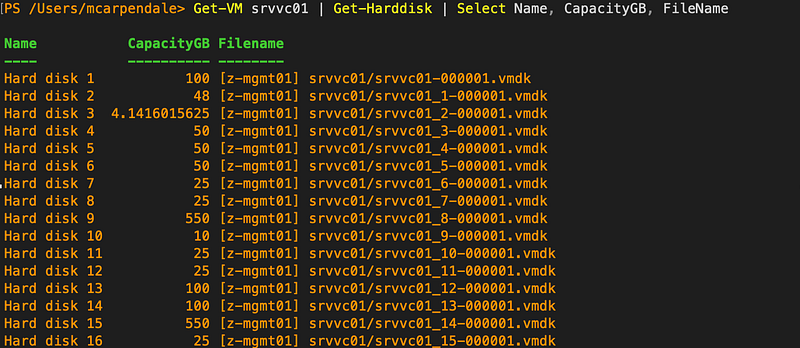 Original vCenter disks — noted here 3 disks have a different sizeDisk structure from the new vCenter Server.
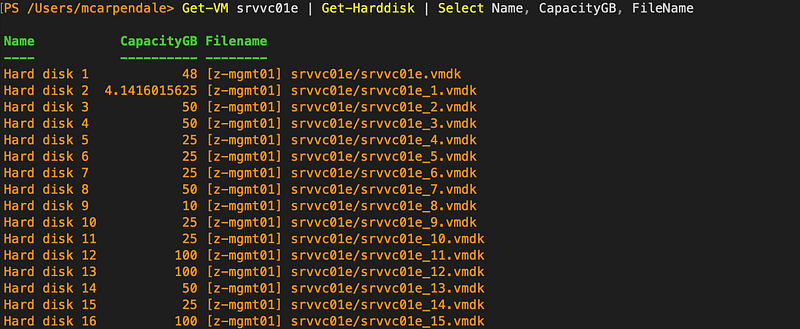 New vCenter Server disksStraight away — why is HDD 1 different…….. grrrrr. Just another issue to deal with. At this stage I reckon — HDD1 looks like it’s been swapped — could be HDD 16 on new VC.
Here is a side by side comparison based on that assumption and the disks I think need adjusting……
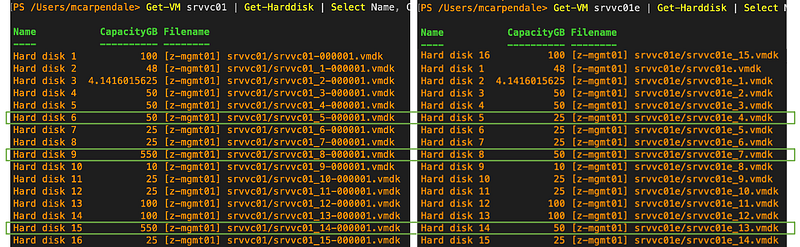 To double check, let’s see what the file system is saying.
 What next
- Shut down the original vCenter Server
- Power up the new vCenter Server
- Capture the file system for comparison
hmmmmm — can’t ssh to the new vCenter Server when you are using the “restore” process. Makes sense but annoying 👎
 OK — after a bit of pondering over a flat white — mmmmmmm ☕️😁This is what I came up with 😏: use part of the set up process to enable SSH
- Quit the vCenter restore process
- Navigate to the vCenter admin page (https://vc.domain.beer:5480).
- Kick off a new Set up
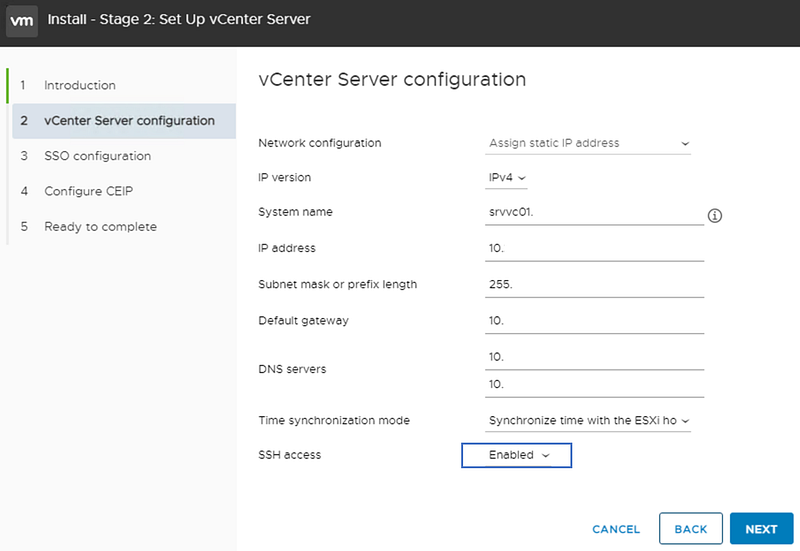
 **Only complete step 2 of the Set up — giving the same details during the initial restore deployment — then enable ssh — next — DO NOT proceed past step 3
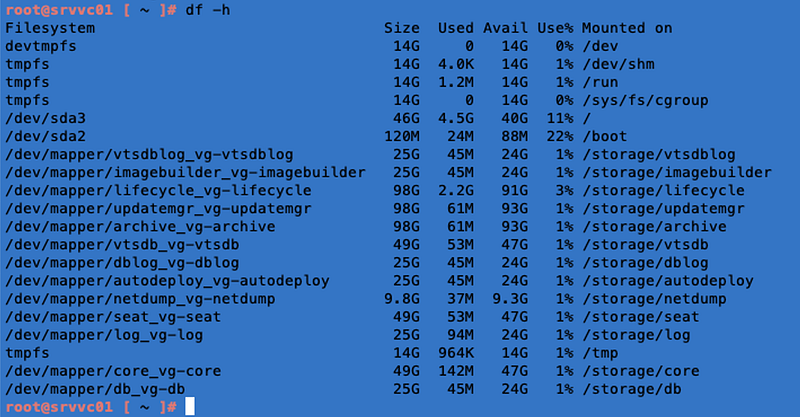
 SSH to the new vCenter Server to get the file system details — eagle eyed viewers will pick up that I’ve got the same vCenter host name — but the file system is different
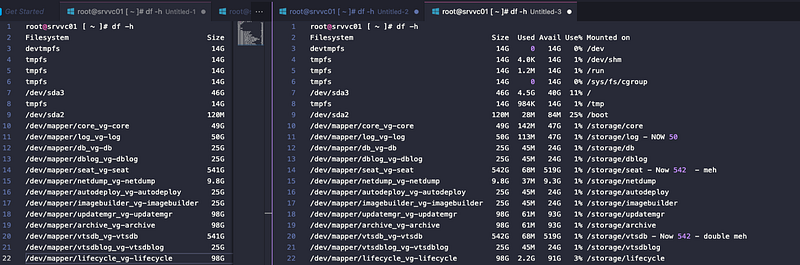
 I used vscode to compare and make notes — original on left — new on right. You can see I’ve got 3 disks that are different
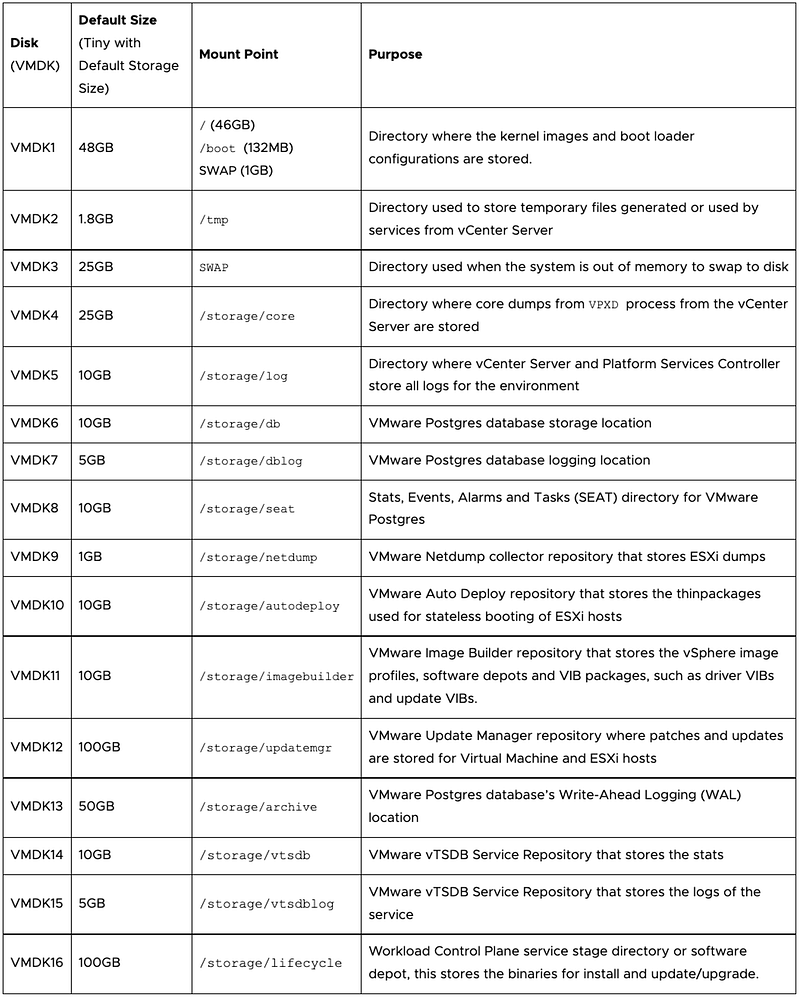
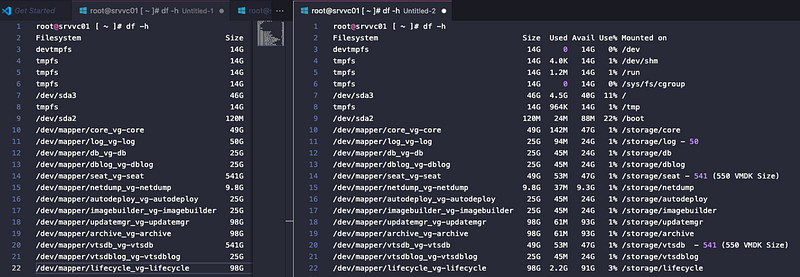 Using this VMware KB and the file system info, I tracked the disk changes to;
VMDK5 — /storage/logVMDK8 — /storage/seatVMDK14 — /storage/vtsdb
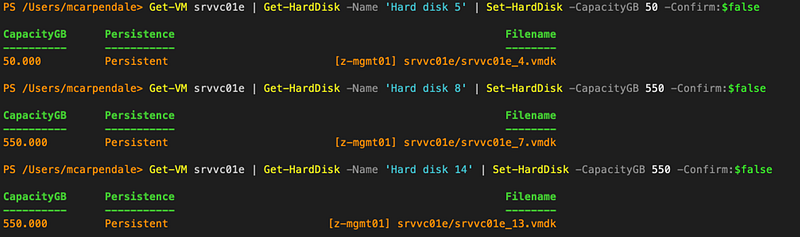
 Ok, now we know what disks need to increase — how?
Get-VM srvvc01e | Get-HardDisk -Name ‘Hard disk 5’ | Set-HardDisk -CapacityGB 50 -Confirm:$false
Get-VM srvvc01e | Get-HardDisk -Name ‘Hard disk 8’ | Set-HardDisk -CapacityGB 550 -Confirm:$false
Get-VM srvvc01e | Get-HardDisk -Name ‘Hard disk 14’ | Set-HardDisk -CapacityGB 550 -Confirm:$false
 With the disks increased — I found this article on increasing the file system on those disks.
/usr/lib/applmgmt/support/scripts/autogrow.sh
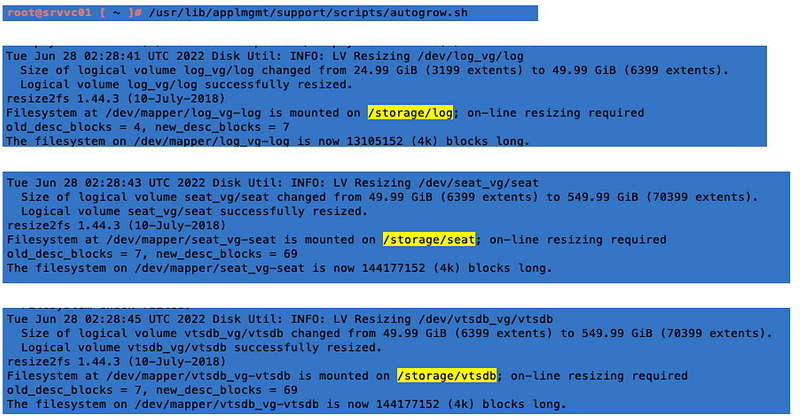 autogrow.sh and the results on my 3 file systemsI captured another df -h and compared in vscode — note: I did have to rearrange the lines…..
 Switching back to the vCenter Server admin page — cancel the Set up process — you stopped on step 3 aye!
 Cancel step 3 — DO NOT click nextNow we can continue the restore. On the vCenter Server admin page — click on **Restore. **Enter the credentials.
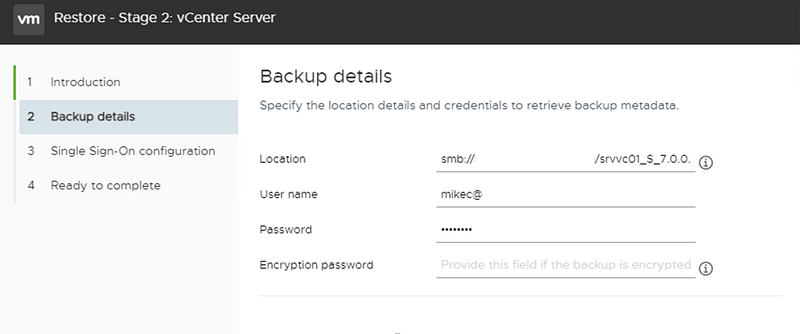
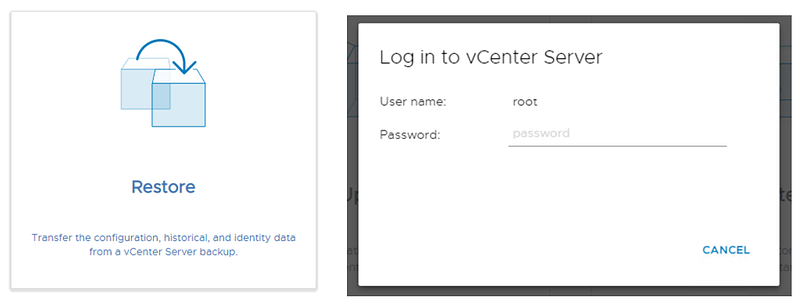 Step 1 — Introduction, just click nextComplete the details in Step 2 — NextAdd SSO details in Step 3 — Next
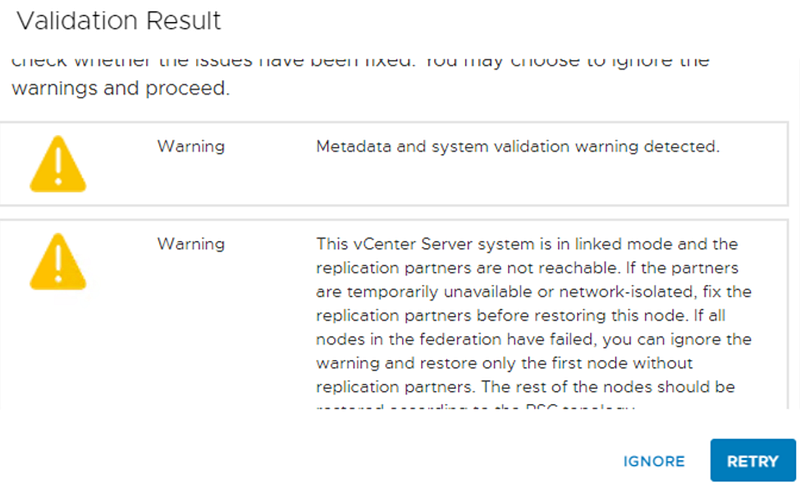
 I ignored the warning — my linked mode vCenter server was also down……. not a great day……. 😫
 Finish — time for more ☕️ while I wait for the vCenter Server restore to complete
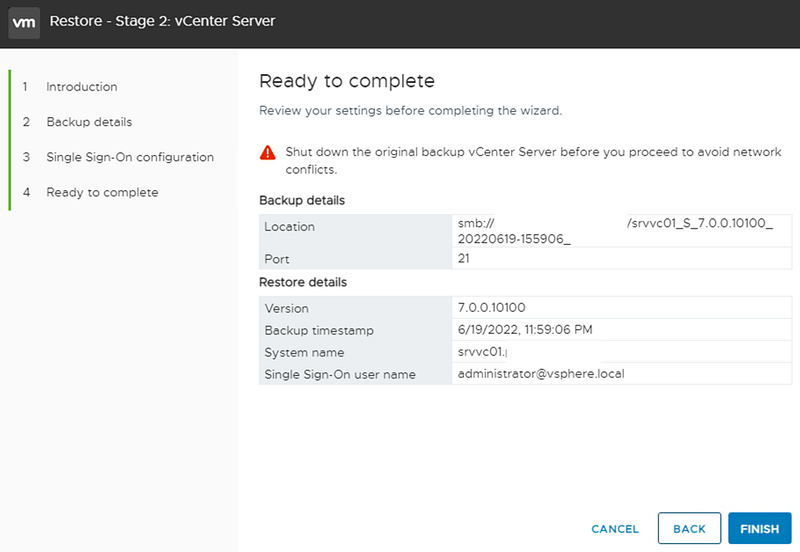 Done: Time for 🍺 — mmmmmmmm hazy pale ale — while I restore vCenter # 2
By Mike Carpendale on June 30, 2022.Canonical linkExported from Medium on February 19, 2026.